
Live overlay & haptics
See every stroke in real time with smooth visuals and optional haptic feedback.
Modern gesture control built for today’s macOS
Hold the right mouse button, draw an intuitive gesture, and Kiseki executes the shortcut, URL, or automation you assign. Your configuration stays entirely on your Mac.
Public test build · paid checkout paused until 1.0
Kiseki is in public beta; core gestures are stable but some flows may change before 1.0.
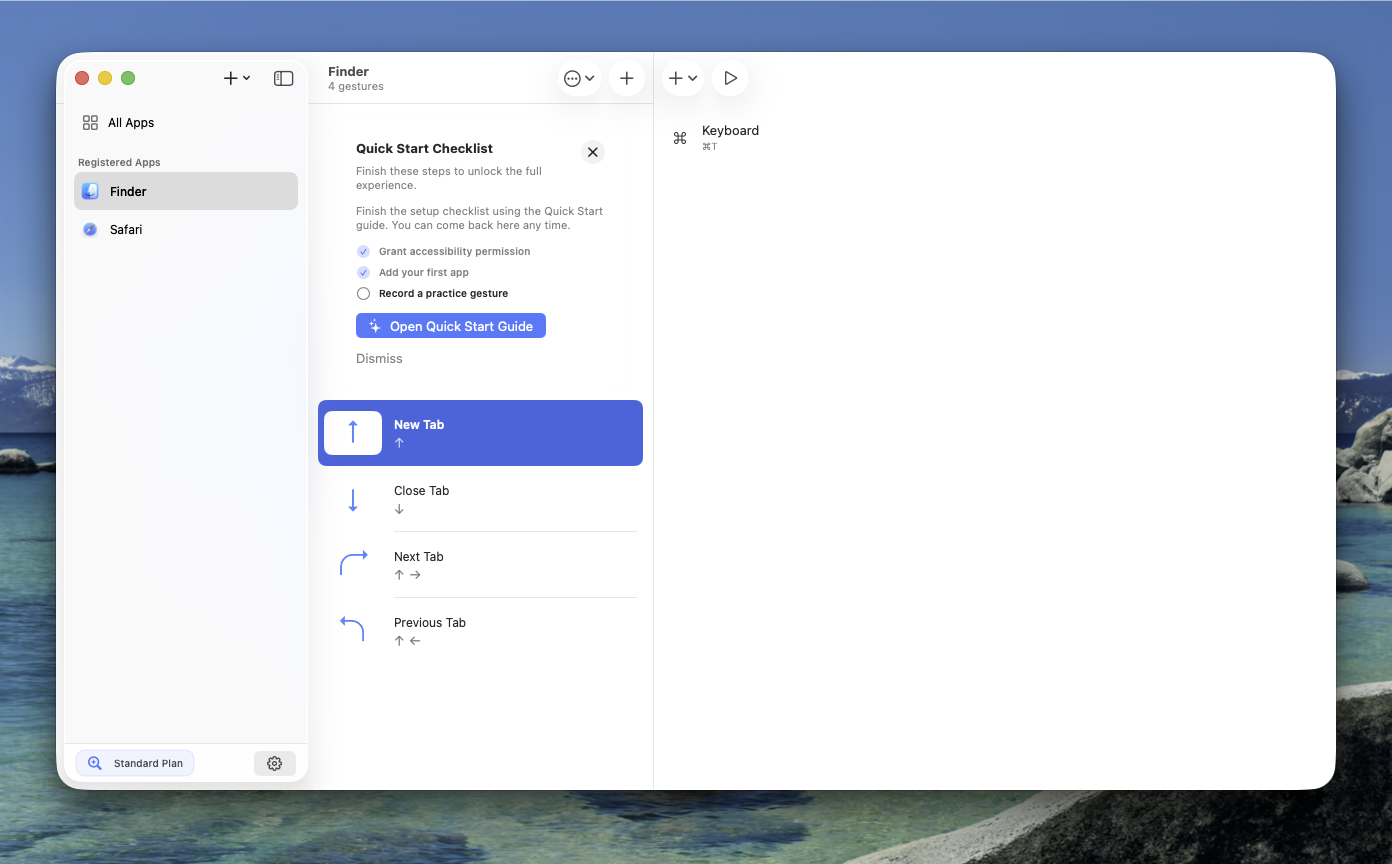
Finder → Close Tab
⌘ W · per-app override
Safari → Open New Tab
⌘ T · global fallback
Features
Kiseki combines the speed of gestures with modern macOS conventions so teams can roll it out without surprise dialogs.
See every stroke in real time with smooth visuals and optional haptic feedback.
Create different gestures per app while keeping global defaults for everything else.
Trigger Shortcuts, run scripts, press complex key combos, or launch any app from a gesture.
Product tour
A quick look at the gesture list and the built-in license screen.
Closing a Safari tab with a downward gesture
Create, duplicate, or import presets with one click.
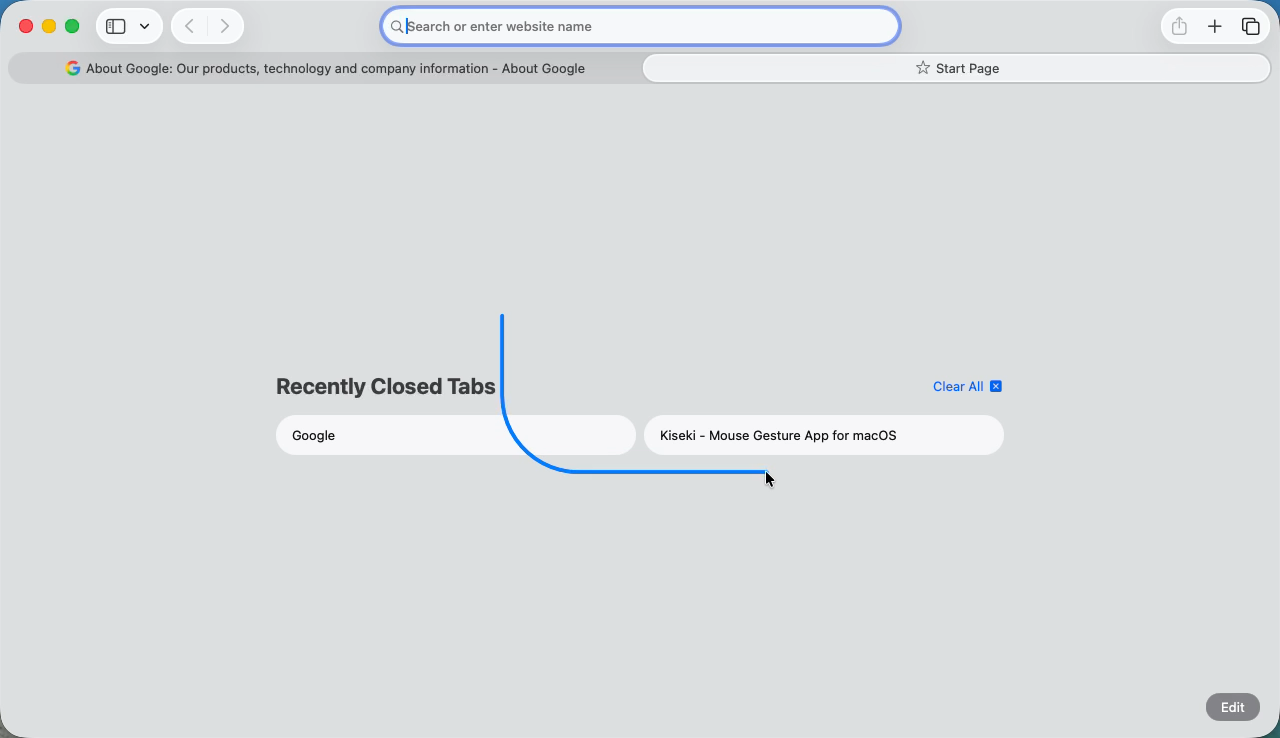
Closing a tab with a downward stroke
Pricing
Kiseki is available as a public test build while paid plans are paused.
Version 0.1.2
Free test build while the 1.0 release is prepared
Download Kiseki, try the core gesture workflow, and send feedback before paid plans reopen.
Download public testKiseki is currently available as a public test build. Paid checkout is paused until the 1.0 release.
Download
macOS 15 or later · Accessibility permission required
Kiseki remembers your window size and settings automatically.
FAQ
Download the app, start the built-in trial, then click “Go Pro” to open a secure checkout window for the Standard subscription or Lifetime license.
Open a GitHub Issue via the footer link. For account or billing topics, use the Email link in the footer.
Everything stays on your Mac. Use Settings > Support > Data to export or import backup files when needed.
Each license can be active on up to 5 Macs simultaneously. Deactivate an old machine from Settings > License to free a seat before activating on another Mac.
Open Settings > License and choose “Check status” or use the link in your purchase receipt to manage or cancel your plan.
No. All recognition happens locally and Kiseki never uploads your gestures, shortcuts, or app list.
Deactivate the old install from Settings > License to free a seat, then activate on the new Mac. Lifetime licenses can be moved; subscriptions just sign back in.
Email [email protected] and we typically reply within one business day (English or Japanese).
Yes. If Kiseki is not for you, send your order number to support within 30 days and we will issue a full refund.